How to Block Time Slots on eAgendas
The Minha Agenda Virtual platform and eAgenda are always innovating and working to bring more features to your Virtual Schedule and make managing your routine easier.
In this tutorial, we will walk through how to block available time slots on the schedule.
Step by Step to Block Time Slots
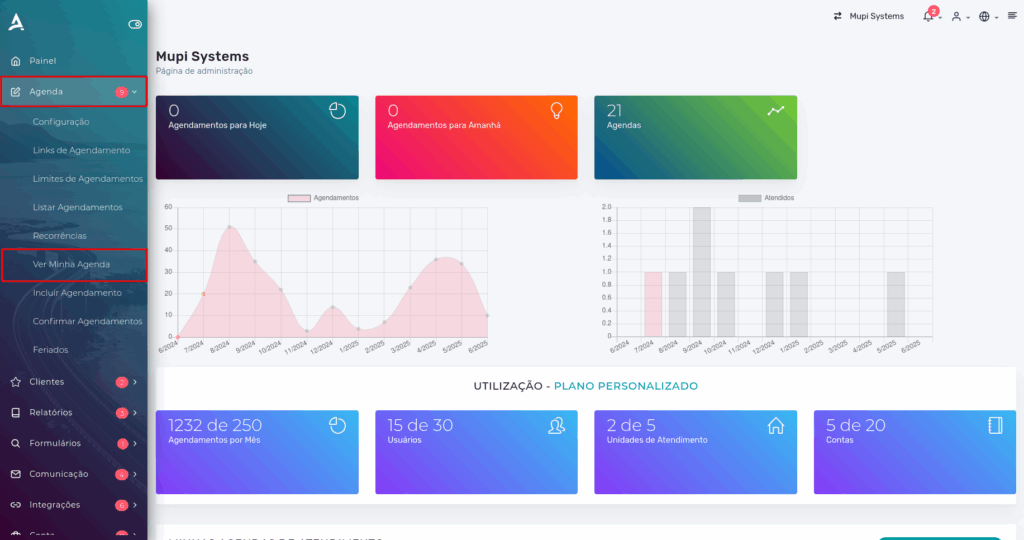
1. Open the Side Menu and click on Agenda → View My Schedule.
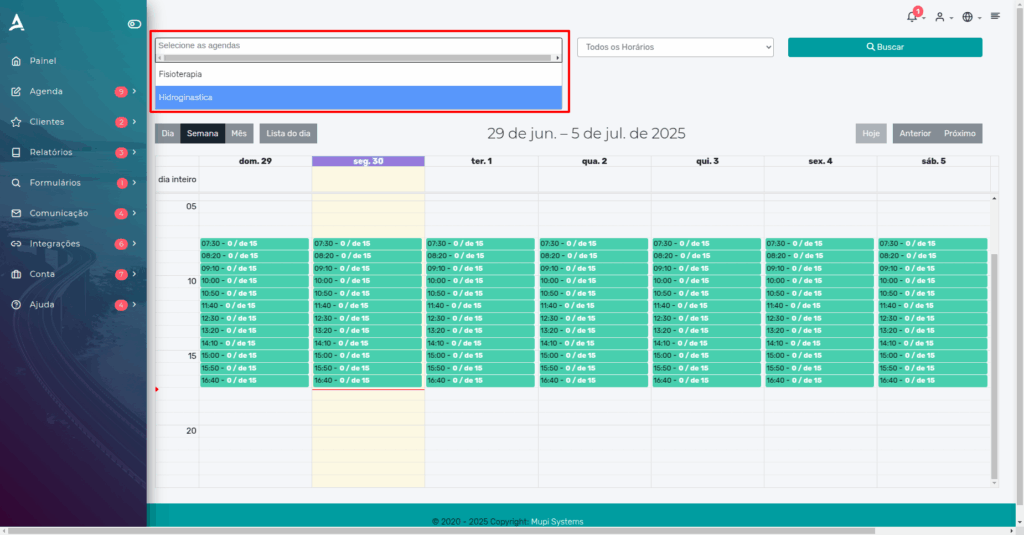
2. Next, you will be redirected to the Calendar screen. In the filter search field, select the Schedule according to your needs.
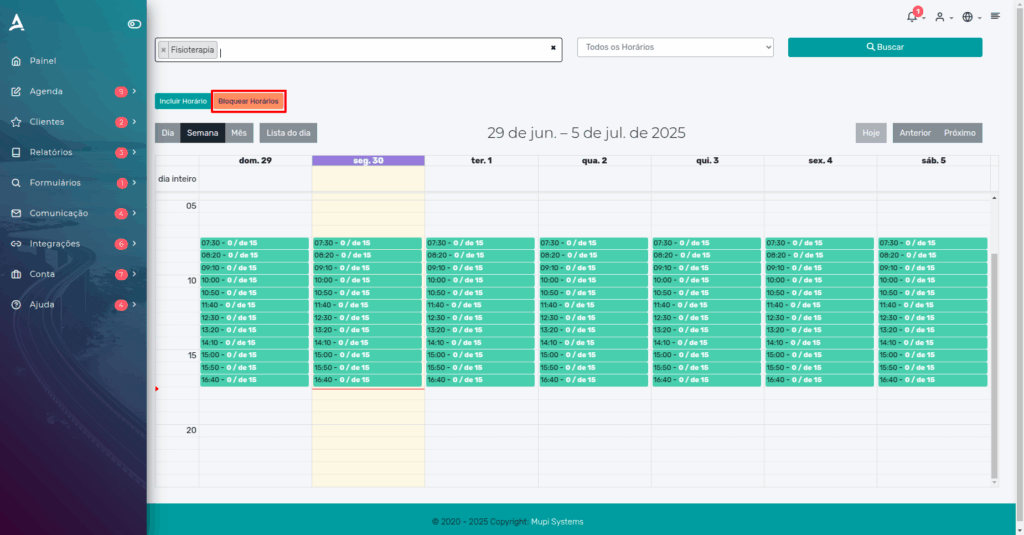
3. After selecting the desired schedule, click on Block Time Slots.
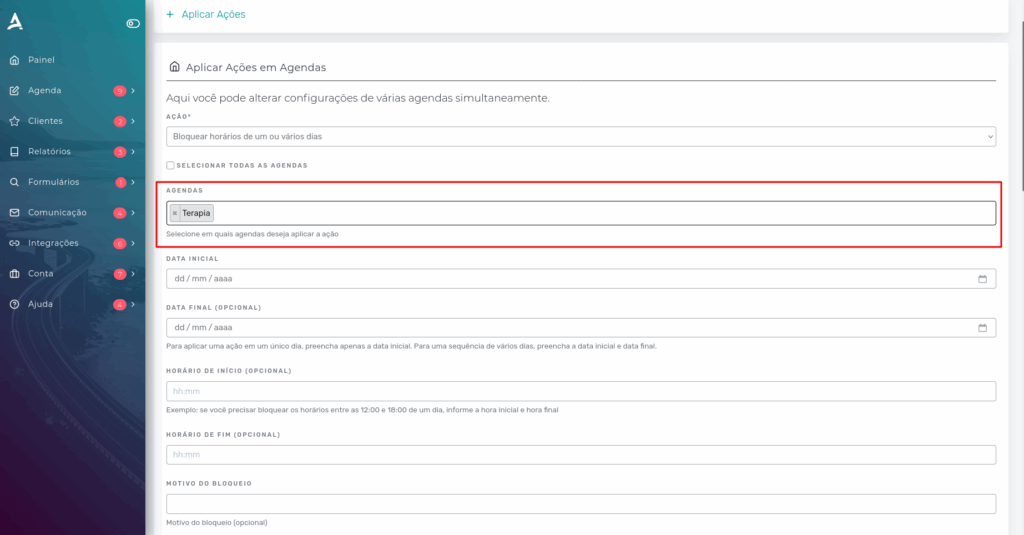
4. Next, you will be redirected to the Apply Actions screen. In the Action field, select Block Time Slots for One or Multiple Days
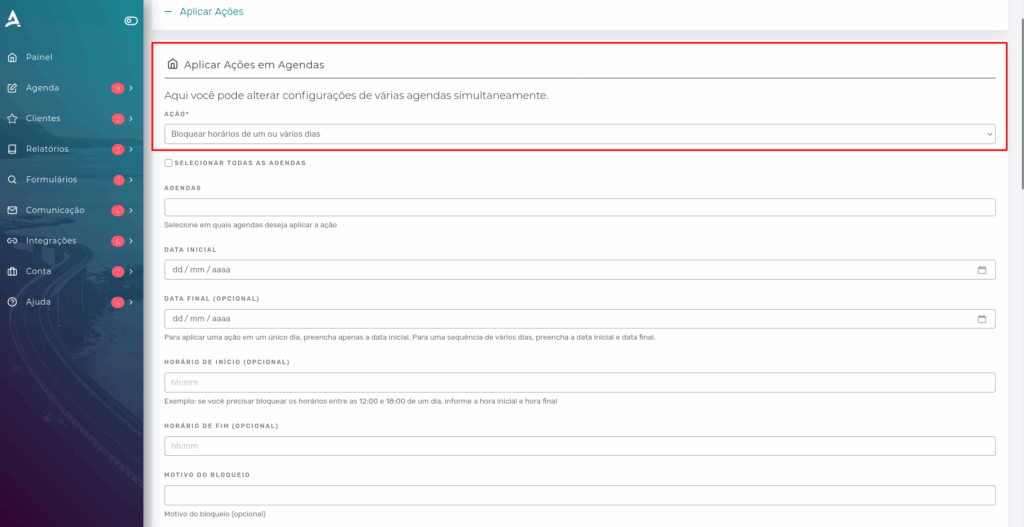
5. In the Schedules field, select the one where you want to block time slots.
6. In the Date fields, you will define the start and end of the block. The same applies to the Time fields.
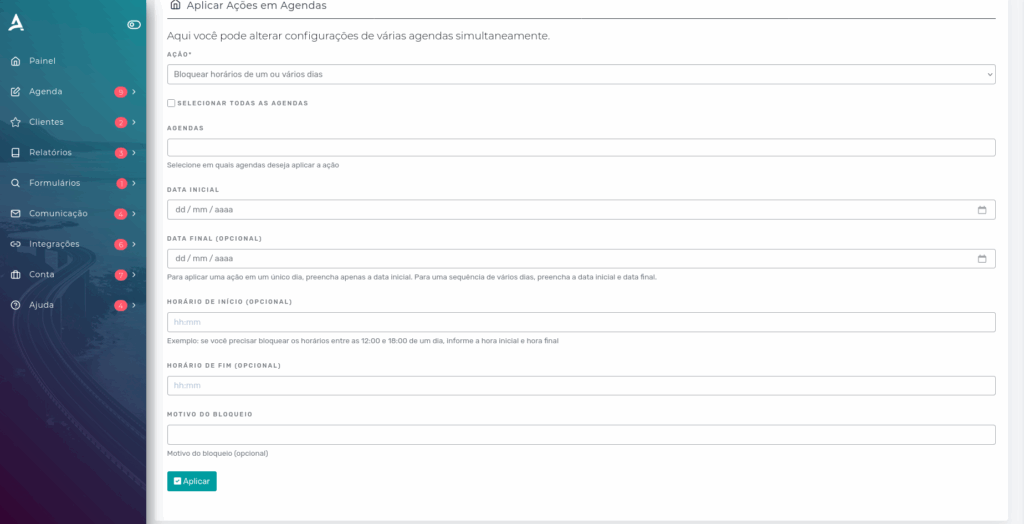
This way, schedule users will not be able to make appointments during the blocked time slots.
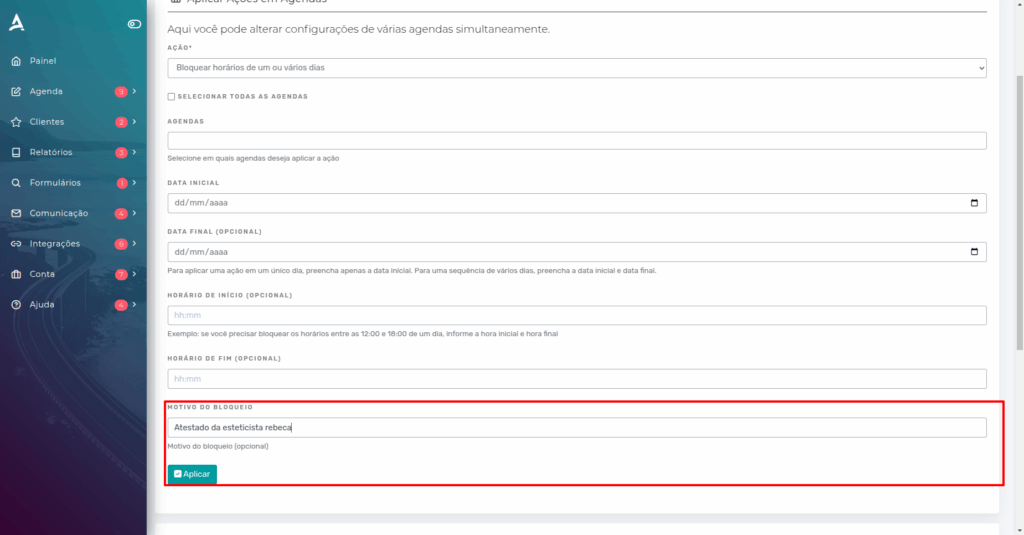
Block Reason
When needed for organization purposes, you can specify the reason for the block.
On the time slot blocking page, use the last field to add the reason for the block.
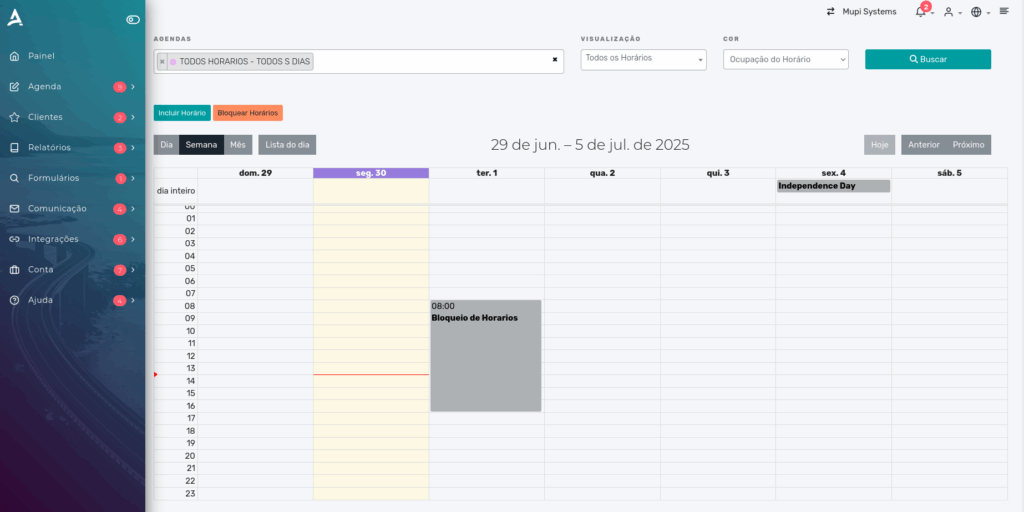
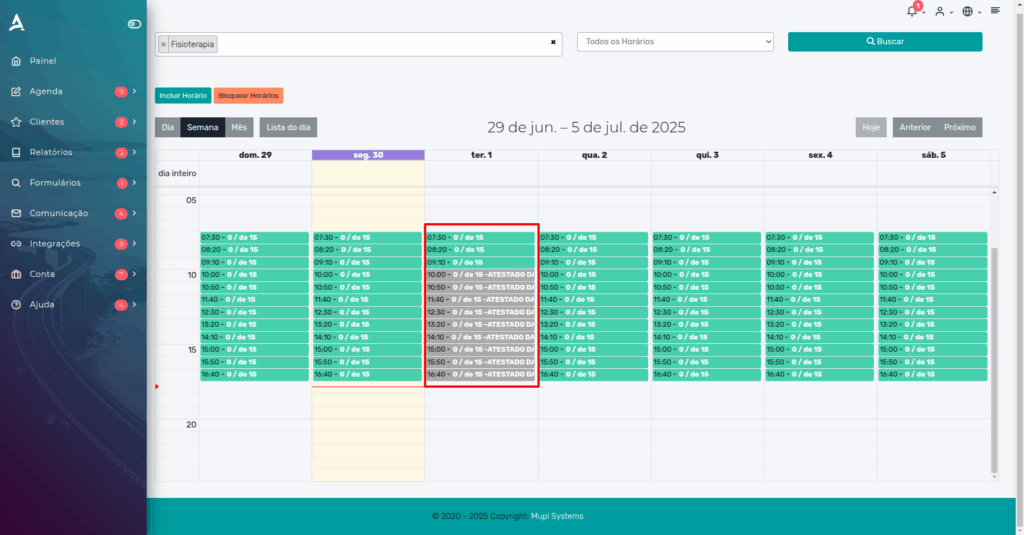
Below is how the blocked time slots are displayed.
Conclusion
In this tutorial, you learned how to block time slots on eAgenda. Take the opportunity to visit our Blog and clear up your questions, or access our YouTube channel.
Mupi Systems offers a range of technological solutions for all types of businesses. Discover our platforms that bring innovation to the market.
Get in Touch or Learn More
We are happy to help! Access our official channels:
 WhatsApp : Click here to send us a message
 eAgenda Platform : Discover eAgenda
 Our Company : Mupi Systems – Innovative Solutions
 Email : contato@mupisystems.com.br
 Tutorials and Documentation : Access our guides and tutorials