Online Appointments with Video Conferencing via Zoom
With the eAgenda and Minha Agenda Virtual platforms, you can offer online appointments through video conferencing. To make this even more convenient, our platforms provide integration with Google Meet and Zoom. We already have a post explaining how to enable the Google Calendar and Google Meet integration — if you would like to check it out, just click here. In this post, we will demonstrate how to enable the Zoom integration and configure your schedules for online appointments.
Enabling the Integration
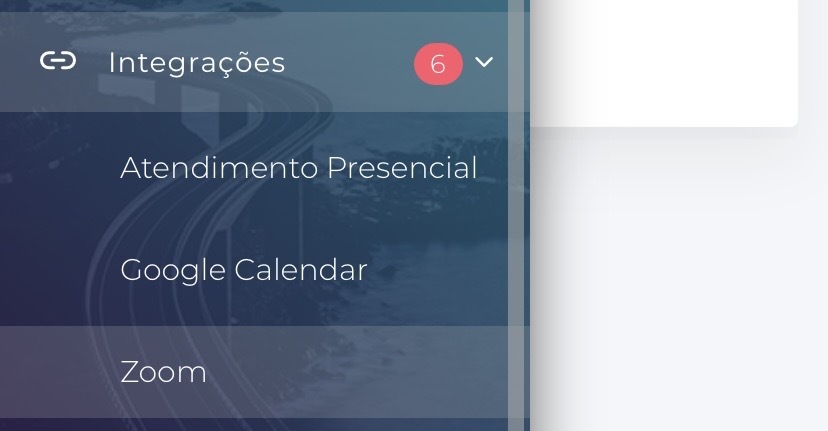
1 — To enable the Zoom integration, go to the side menu of our platform, click “Integrations” and then “Zoom”.
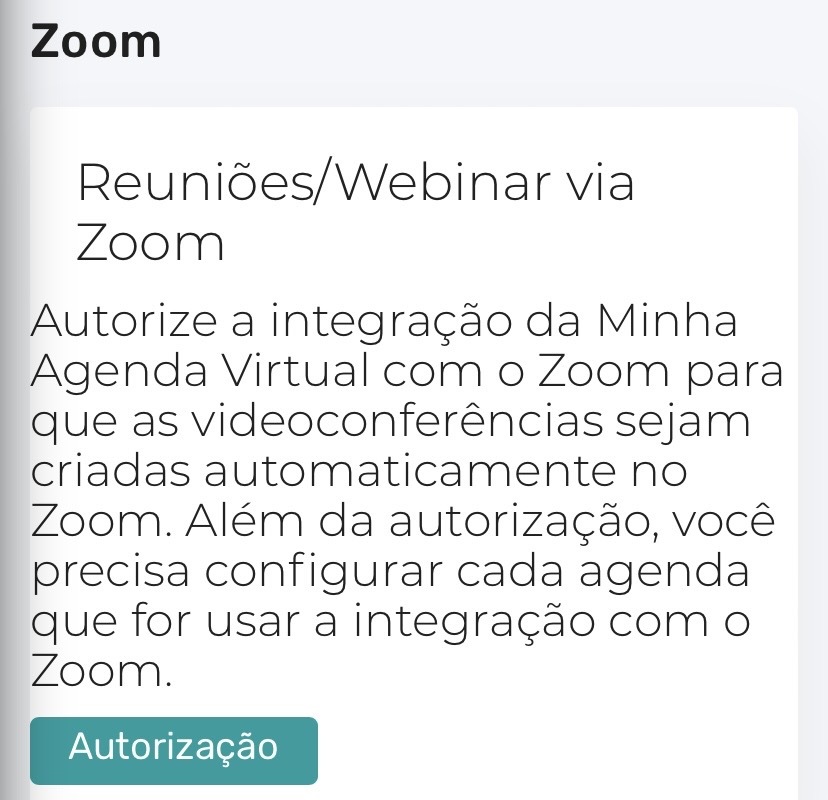
2 — On the next page, click the “Authorization” button.
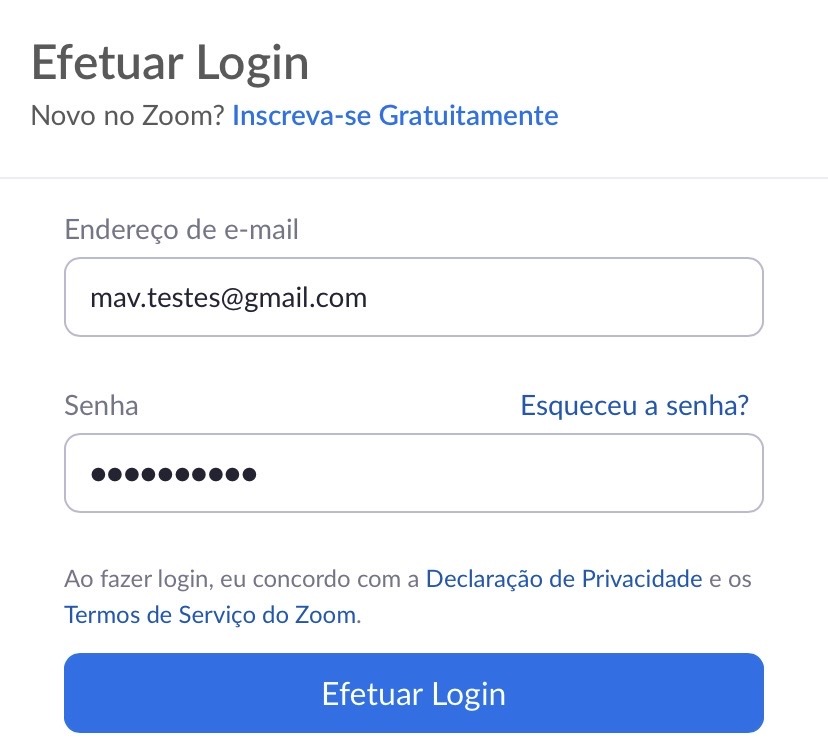
3 — You will be redirected to the Zoom login page, where you must sign in with the credentials of the account that will be used for the integration.
4 — Next, you will be redirected to a page where you must confirm the integration authorization. Simply click the “Allow” button.
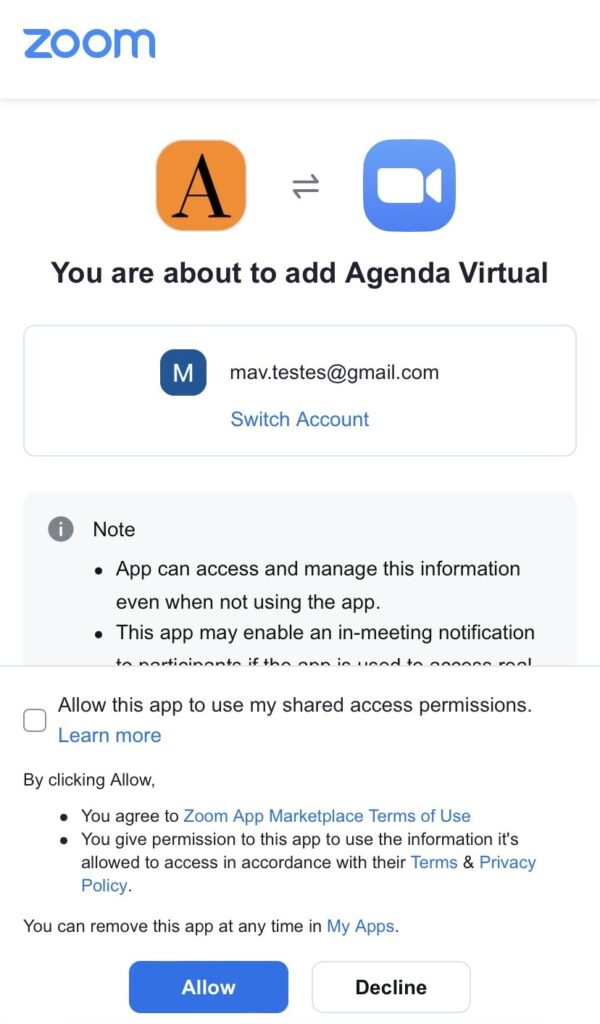
Done! Your account’s integration with Zoom is now active!
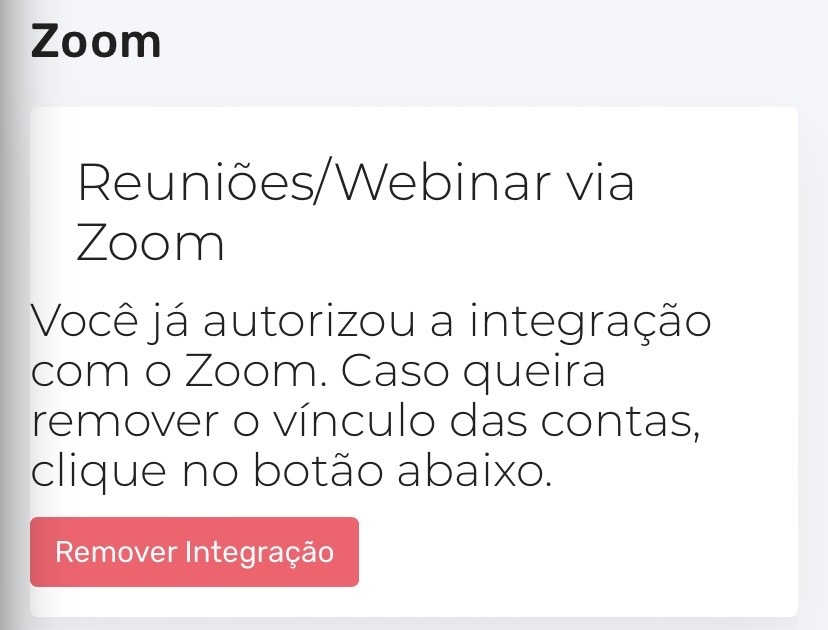
If you wish to remove the integration for any reason, simply repeat step 1 of this section and click the “Remove Integration” button.
Configuring Your Schedules
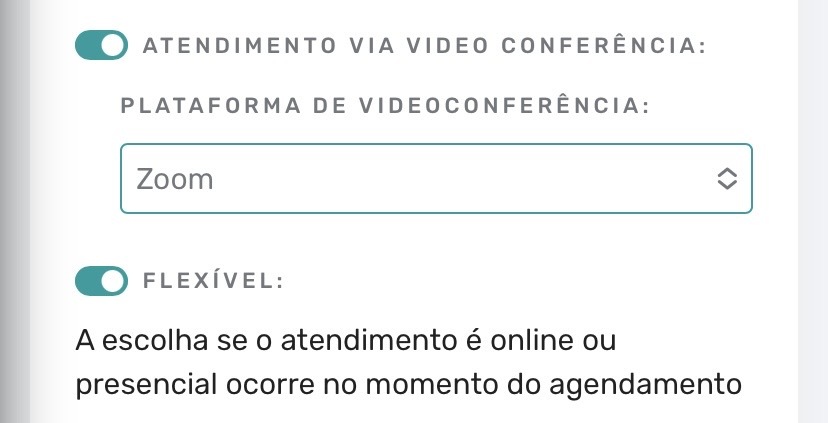
After enabling the integration, you need to configure each schedule where you want to offer online appointments via Zoom. To do this, go to the schedule’s “General Settings” page, enable the “Video Conference Appointments” or “Flexible” toggle, and then select “Zoom” in the “Video Conference Platform” tab.
Once this configuration is complete, whenever new appointments are booked on that schedule, a Zoom video conference will be automatically created, and the client will receive the access link along with the appointment confirmation.
Remember: you need to apply this configuration to every schedule where you want to offer online appointments via Zoom.
Conclusion
In this post, we covered the integration of the eAgenda and Minha Agenda Virtual platforms with Zoom. This integration allows you to offer online appointments via video conferencing, providing greater convenience for both scheduling and attending appointments. The step-by-step instructions shown here apply to both platforms (eAgenda and Minha Agenda Virtual), but if you use both, you will need to perform the procedure on each one. And remember: each schedule must be properly configured for the integration to be available.
We hope this post was helpful and we are available to answer any questions!