How to Configure Simultaneous Appointments in the Same Time Slot
The eAgenda and Minha Agenda Virtual platforms allow the administrator to configure the scheduling of multiple people in the same time slot. This configuration can be done in two ways: with group appointments, or with individual appointments with multiple attendants. In this post, we will explain each of these methods and demonstrate how to configure them correctly.
Group Appointments
This type of appointment is used for scheduling group classes or mentoring sessions, for example. It applies to situations where there is one teacher/mentor and a group served in the same environment, at the same time. That is, multiple people will be served simultaneously by the same attendant. Therefore, it is important to indicate the maximum number of people who can book the same time slot, in order to limit the group size.
Setting this up is quite simple — see the steps below:
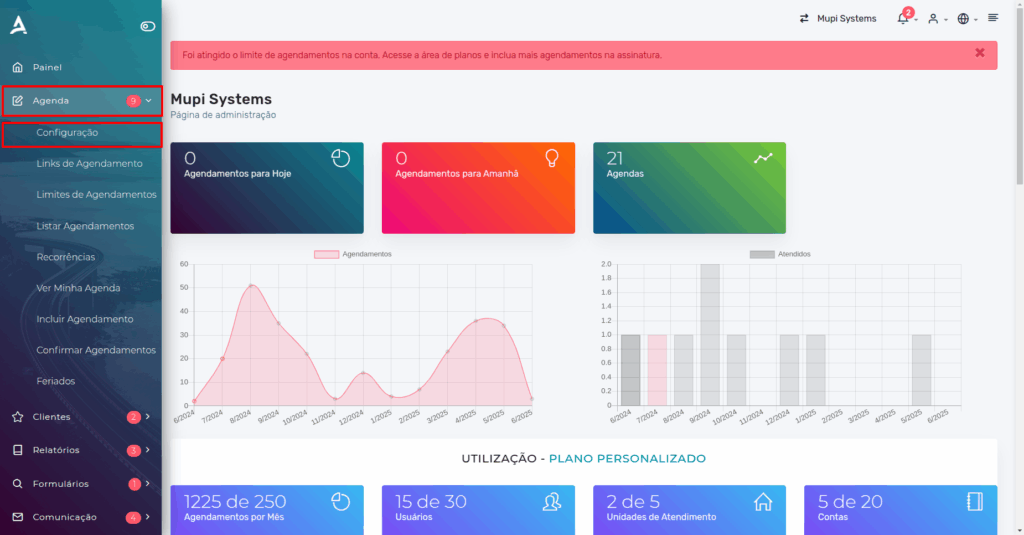
Access the platform’s side menu, click on Agenda → Configuration.
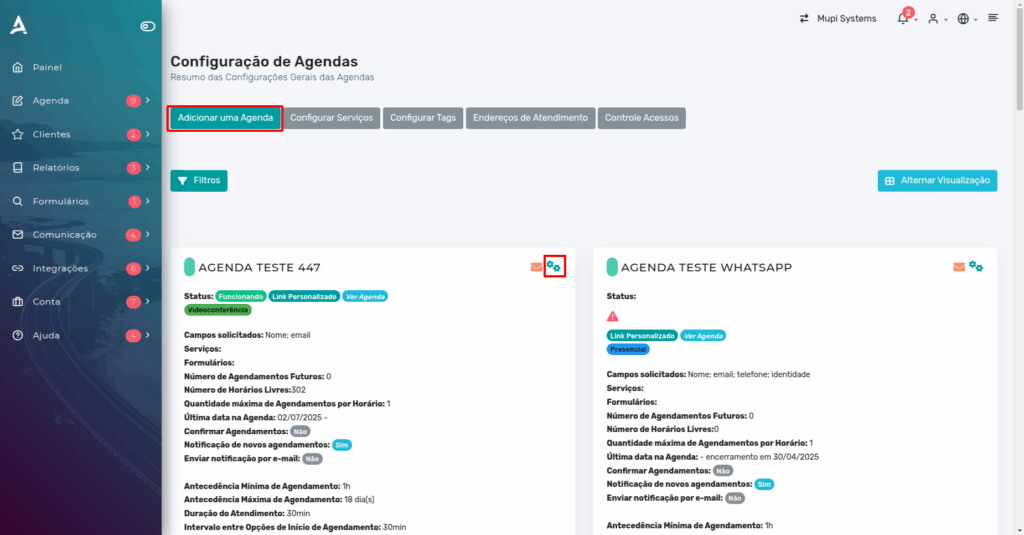
On this page, you can Add a schedule for which you want to configure group appointments, or Configure a schedule that is already set up for use.
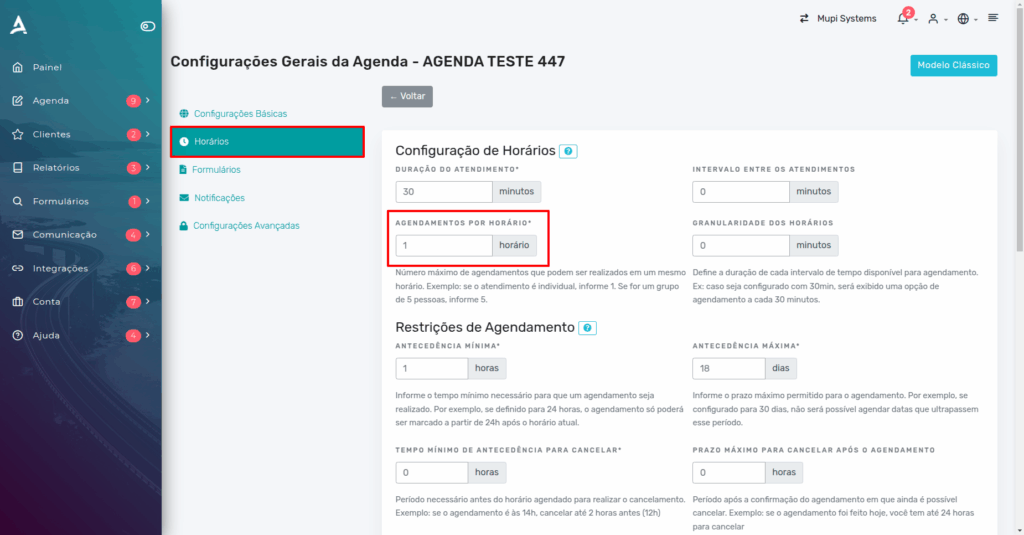
At the beginning of the settings page, go to the time slots field, where you will find the field to enter the maximum number of people in the same time slot. So, for example, if your group can have up to 5 people, simply enter the number in the indicated field.
Finally, you need to enable the Simultaneous Appointments button, so that the platform correctly identifies the purpose of your schedule.
To activate: Advanced Settings → Extras → enable Simultaneous Appointments.
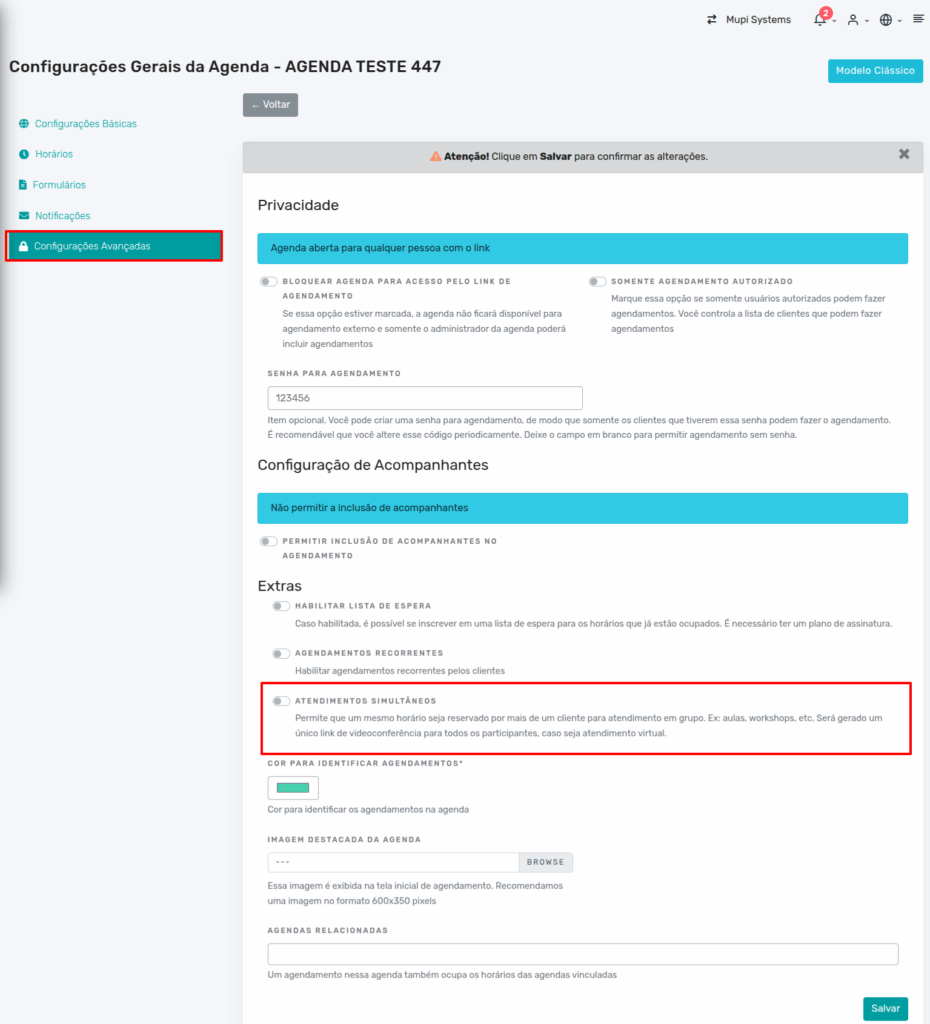
After that, simply Save the changes.
Individual Appointments with Multiple Attendants
This type of appointment, in turn, is used in situations where multiple attendants each serve one person at a time, in different environments/contexts, at the same time. This is the case, for example, of a department divided into 5 service windows, where every time interval allows 5 different people to be served individually by each attendant at each window.
The configuration for this type of appointment follows the same steps as items 1 to 3 in the previous section. The difference is in item 4, where you should leave the Group Appointments button disabled.
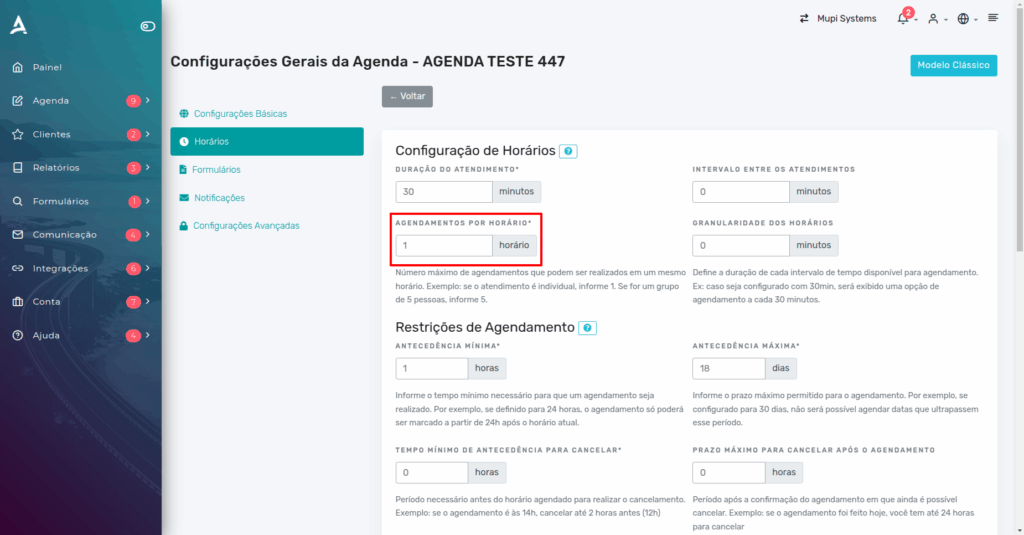
But be careful! In both cases (group appointments or individual appointments with multiple attendants), it is important to configure the appointment duration and the interval between scheduling options. These fields are found in the upper tab of the schedule configuration screen, under configure services, and should be filled in minutes.
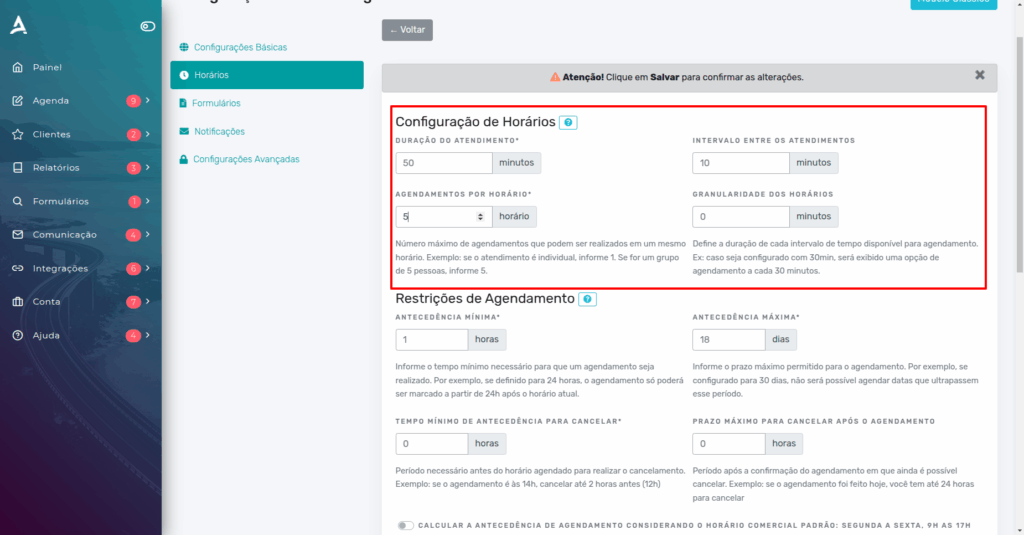
This configuration is necessary for the platform to correctly display the time slots in your schedule.
Conclusion
In this post, we discussed how to configure simultaneous appointments on eAgenda and Minha Agenda Virtual. This configuration can be used for both group appointments and individual appointments. As shown, these are simple configurations to implement and are intended for specific schedule purposes. In both cases, it is important to remember to correctly configure the appointment duration and the interval between scheduling options, so that the platform displays the time slots the way you want. Take the opportunity to visit our Blog and clear up other questions, or access our YouTube channel.
We hope this post was helpful, and we are available to answer any questions!
Mupi Systems offers a range of technological solutions for all types of businesses. Discover our platforms that bring innovation to the market.