Recurring Appointments on eAgendas and eAgendas
On the eAgenda and Minha Agenda Virtual platforms, you can enable the recurring appointments feature, a solution that brings more convenience for both professionals and clients.
By activating this option, you allow clients to make automatic bookings on future dates, according to a defined frequency, without needing to access the platform for each new appointment.
Benefits of this feature:
- Optimizes schedule organization;
- Reduces the risk of forgotten or missed appointments;
- Ensures greater convenience and client loyalty;
- Provides a continuous and predictable service flow.
This is an excellent option for recurring services such as therapy sessions, classes, medical appointments, aesthetic consultations, and more.
Step by Step: How to Configure a Recurring Appointment
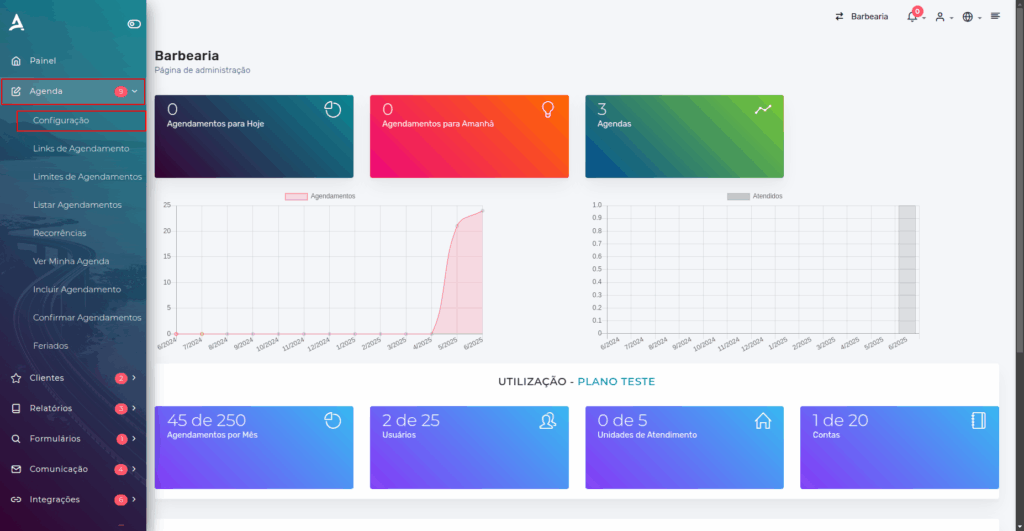
Open the Side Menu and click on Agenda → Configuration.
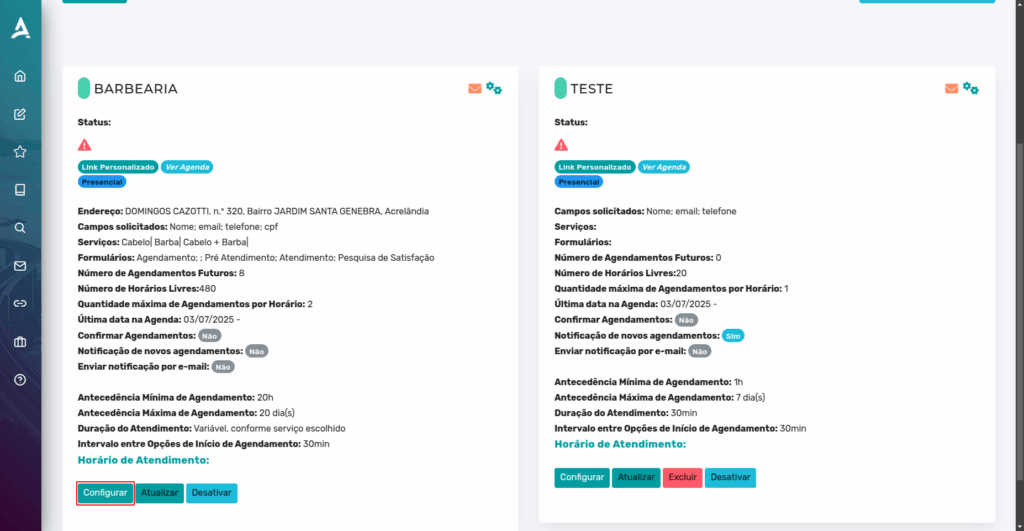
After the previous step, click Configure on the desired schedule.
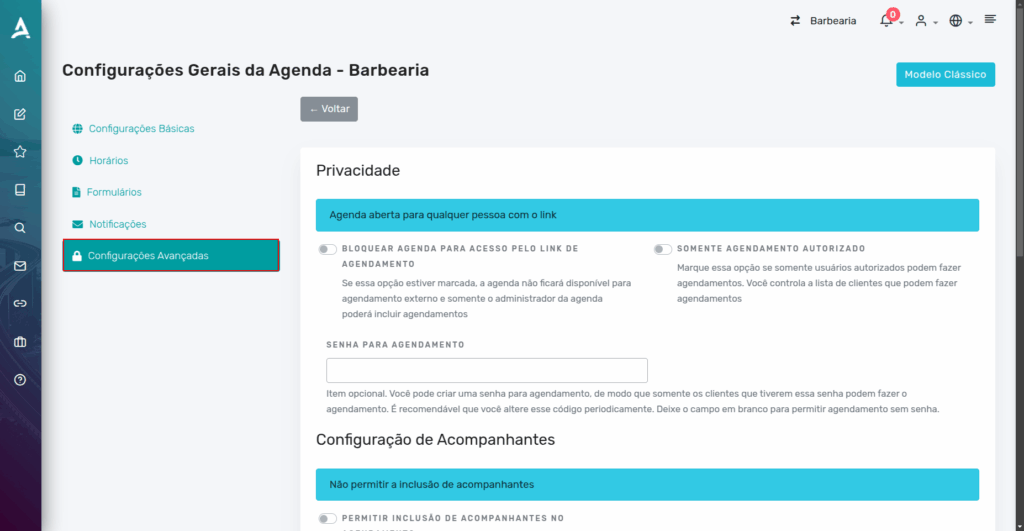
You will be redirected to your schedule settings. On this page, click the Advanced Settings tab and scroll to the bottom.
Locate the Extras section, where you should enable the Recurring Appointments option. After enabling it, click Save.
Done! Your schedule is now configured to accept recurring appointments.
How to View My Recurring Appointments
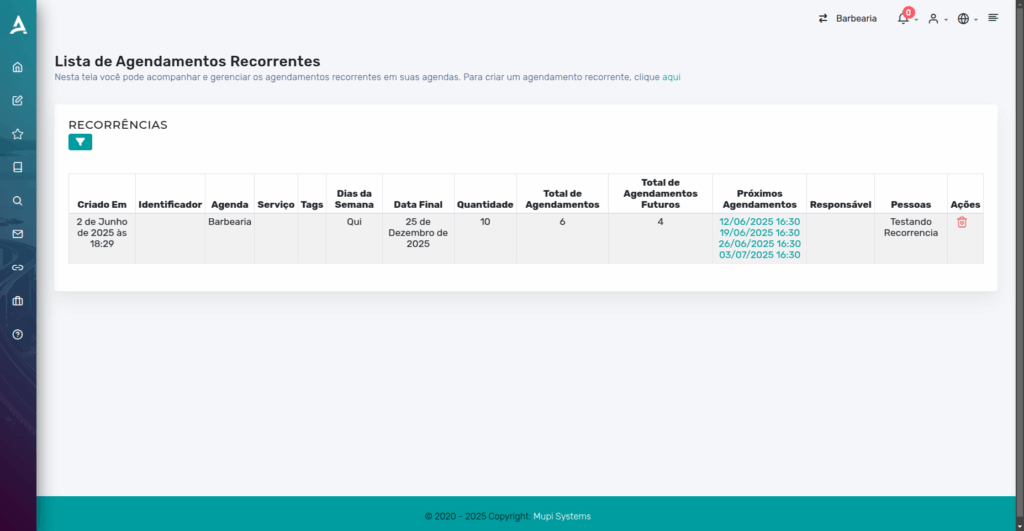
In the side menu, click on Agenda → Recurrences.
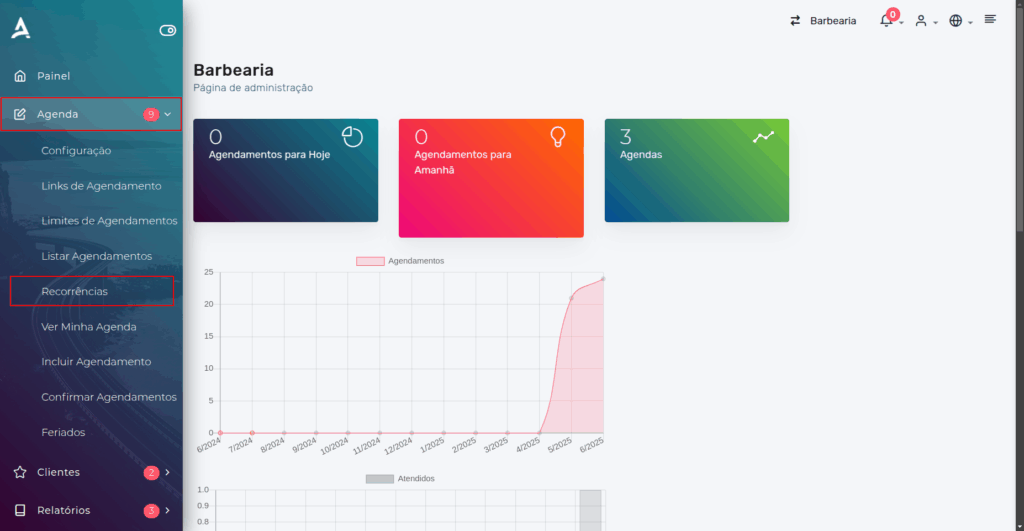
You will be redirected to the Recurring Appointments List screen. On this screen, you can track and manage recurring appointments in your schedules.
Adding a Recurring Appointment
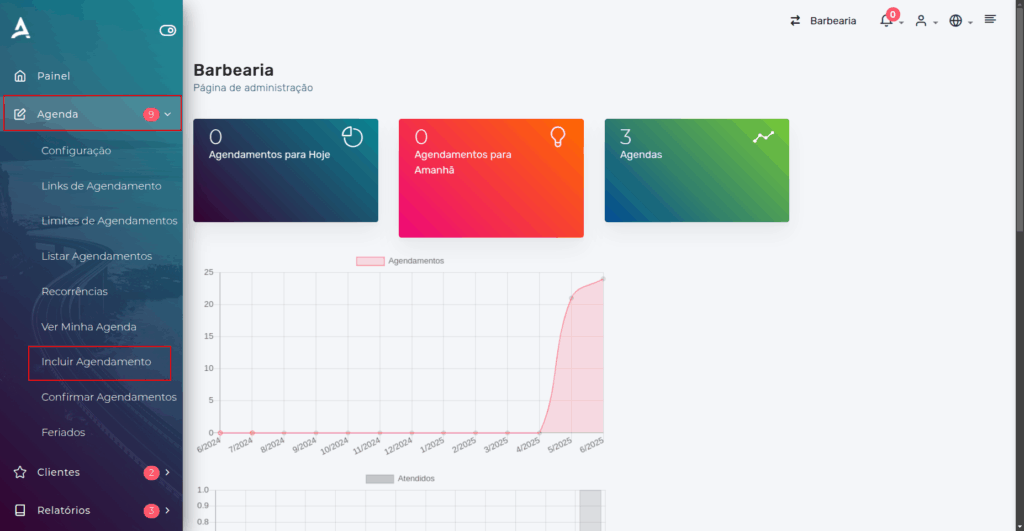
In the side menu, click on Agenda > Add Appointment.
Next, you need to fill in the required fields to add the appointment.
Appointment Details
Schedule: Choose the specific schedule where the appointment will be recorded (for example, professional’s name, room, or unit).
Service: Select the type of service to be provided, as previously registered on the platform (e.g., consultation, massage, meeting, etc.).
Appointment Date: Set the exact date when the appointment will take place.
Time: Select the available time for the appointment, considering the time slots configured in the chosen schedule.
Participants
Client: Enter the name of the client who will make the appointment. This information is essential for the record and contact.
Companions: If the appointment involves other people, enter the number and/or names of companions who will be present.
Appointment Manager: Define which professional or collaborator will be responsible for conducting the appointment at the scheduled date and time.
Team Members: If needed, indicate other team members who will be involved in the appointment, either for support or complementary activities.
Recurrence
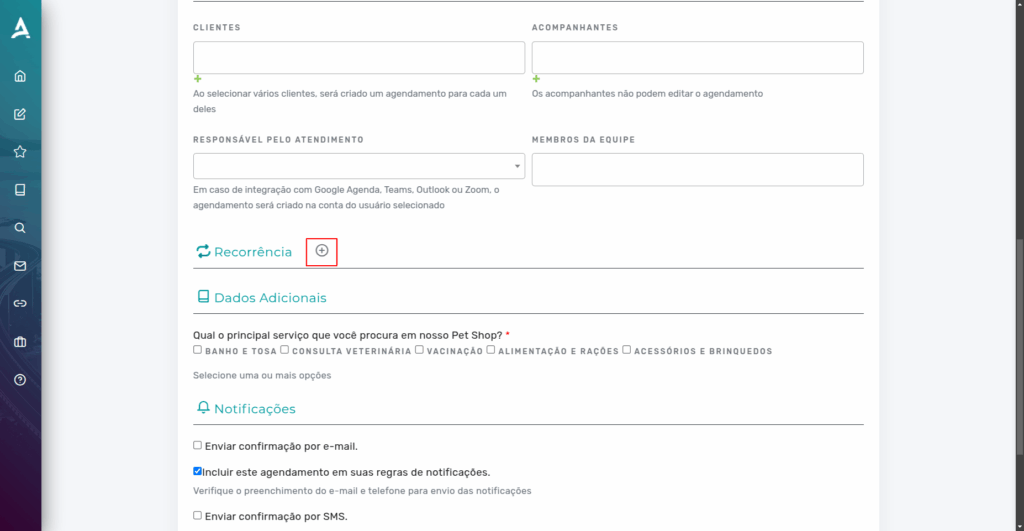
In the recurrence section, click the ”+” icon to define the recurrence settings.
Simply fill in the recurrence fields according to your needs.
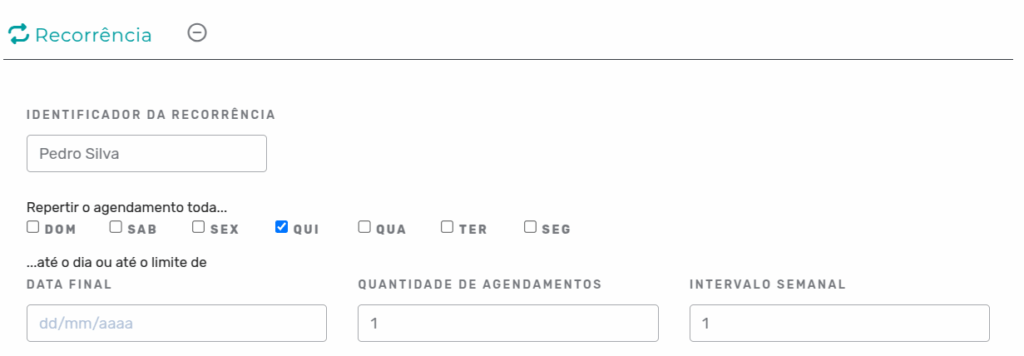
Done! Now just Save the appointment.
Notification Enhancements for Recurring Appointments
Notifications for recurring appointments have been updated, as our goal is to make appointments more accurate and efficient in order to reduce potential no-shows.
Confirmation Email for Recurring Appointments
- When the recurrence is created, a confirmation email is sent for the first appointment in the series;
- On the day of each appointment in the series, within 3 hours after the scheduled start time, a confirmation is sent for the next appointment;
- The process continues until the number of appointments in the series or the recurrence end date is reached.
Forms in Recurring Appointments
If you use forms linked to the appointment, note the following behavior:
- When the user makes the appointment, they fill out the scheduling form, which is copied to all appointments in the series;
- Pre-service, service, and satisfaction survey forms must be completed separately for each appointment in the series;
For more details on using forms, access the documentation at this link.
Notification Rules for Recurrences
If you have configured a custom notification rule — such as “send a WhatsApp reminder 1 hour before the scheduled time” or “send an email 2 days before the appointment date” — these rules will also be automatically applied to appointments created within a recurrence.
For more details, access the notification rules documentation.
Conclusion
In summary, in this tutorial you learned how to configure recurring appointments on the eAgenda and Minha Agenda Virtual platforms. This feature allows you to automate future bookings based on a defined frequency, ideal for ongoing services such as consultations, classes, and regular appointments. The step-by-step guide includes enabling recurrence in the schedule settings, viewing and managing recurring appointments, and configuring notifications and forms for each occurrence. The system also sends automatic confirmation emails and applies custom notification rules, optimizing the client experience and professional organization.
Get in Touch or Learn More
📞 WhatsApp: [Click here to send us a message] 🌐 Meu Atendimento Virtual Platform: [Discover the tool] 🏢 Our Company: [Mupi Systems – Innovative Solutions] 📧 Email: [contato@mupisystems.com.br] 📚 Tutorials and Documentation: [Access our guides and tutorials]