How to Configure Services in eAgendas
This feature allows you to create one or multiple services within the same calendar. It is very useful when you have varied services, different service durations, and different prices. Additionally, users can choose the service they prefer and make payment via a link directly on the eAgenda platform.
What are services?
Services are specific activities performed by a professional or company, aimed at meeting a customer’s demand or need. These activities can vary depending on the field of work and the specialty of the provider.
For example, in a barbershop, a professional may offer a variety of services such as:
- Men’s or children’s haircuts
- Beard design or grooming
- Eyebrow shaping or trimming
- Hair hydration
- Promotional packages combining two or more of these services
Each service can have its own execution time, specific price, and even requirements such as materials or prior preparation. In the eAgenda system, you can register these services in a customized way, associating each one with a specific professional, calendar, duration, and price.
This way, service management becomes more organized, and the end customer has more clarity and autonomy when scheduling exactly what they need.
Step by Step: How to Configure Services
Open the Side Menu and click on Calendar → Settings
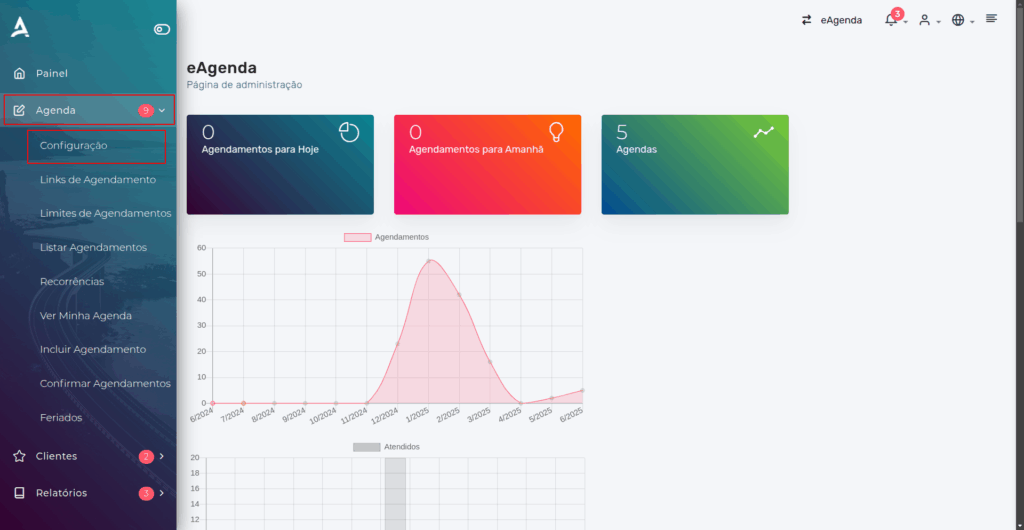
After clicking Settings, you will be redirected to the Calendar Settings screen. On this screen, click Configure Services.
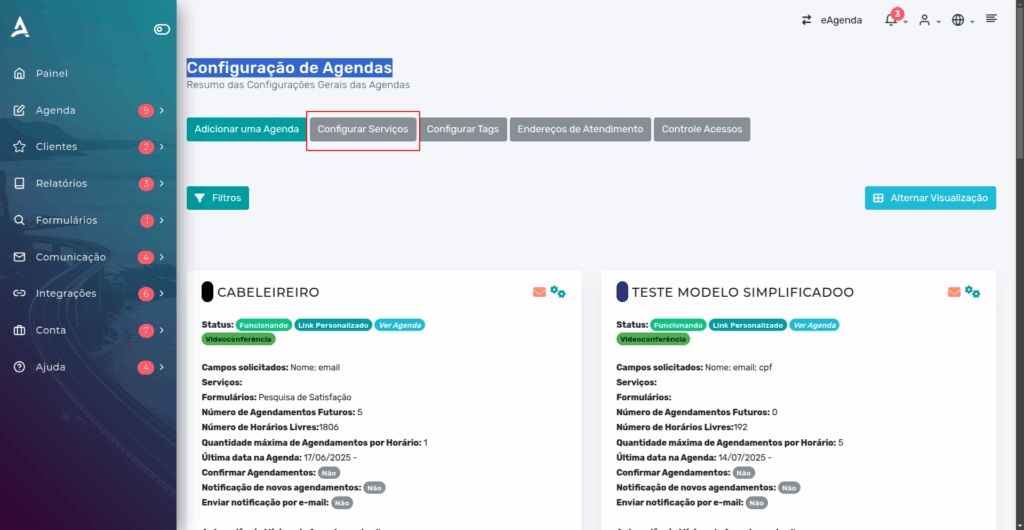
Then, you will be redirected to the “Services” screen.
On this screen, you can manage existing services, editing or removing them as needed, as well as create new services easily.
To register a new service, simply click the “Create Service” button located at the top of the page.
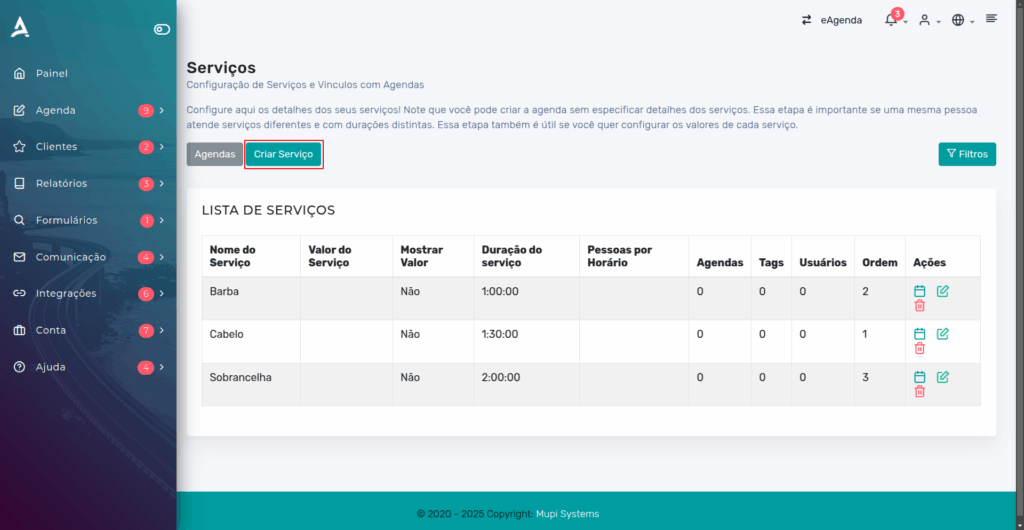
After the previous step, you will be redirected to the Add New Service screen.
On this page, you will need to fill in the required and optional fields to properly configure the service. These are:
- Service Name – The name that will be displayed to the customer.
- Scheduling Order – Defines the position of the service in the options list.
- Service Price (optional) – The price charged for the service.
- Show Price to Customers (optional) – Enables the price to be displayed at the time of scheduling.
- Payment Link (optional) – If you use online billing, enter the link for the customer to make payment directly.
- Appointment Duration – The total time reserved on the calendar for this service.
- Capacity per Time Slot (optional) – The number of people who can simultaneously schedule this service at the same time.
- Customer Instructions (optional) – Text that will be displayed on the appointment confirmation screen and in the email sent to the customer.
Service Linking
On the same screen, you can:
- Link the service to all calendars in your account or choose specific calendars.
- Add identification tags (optional), useful for categorization or searching.
- Define the responsible users for handling this service.
This configuration ensures that the service is properly integrated into the scheduling flow, with clear information for both the customer and the team.
See the example below:
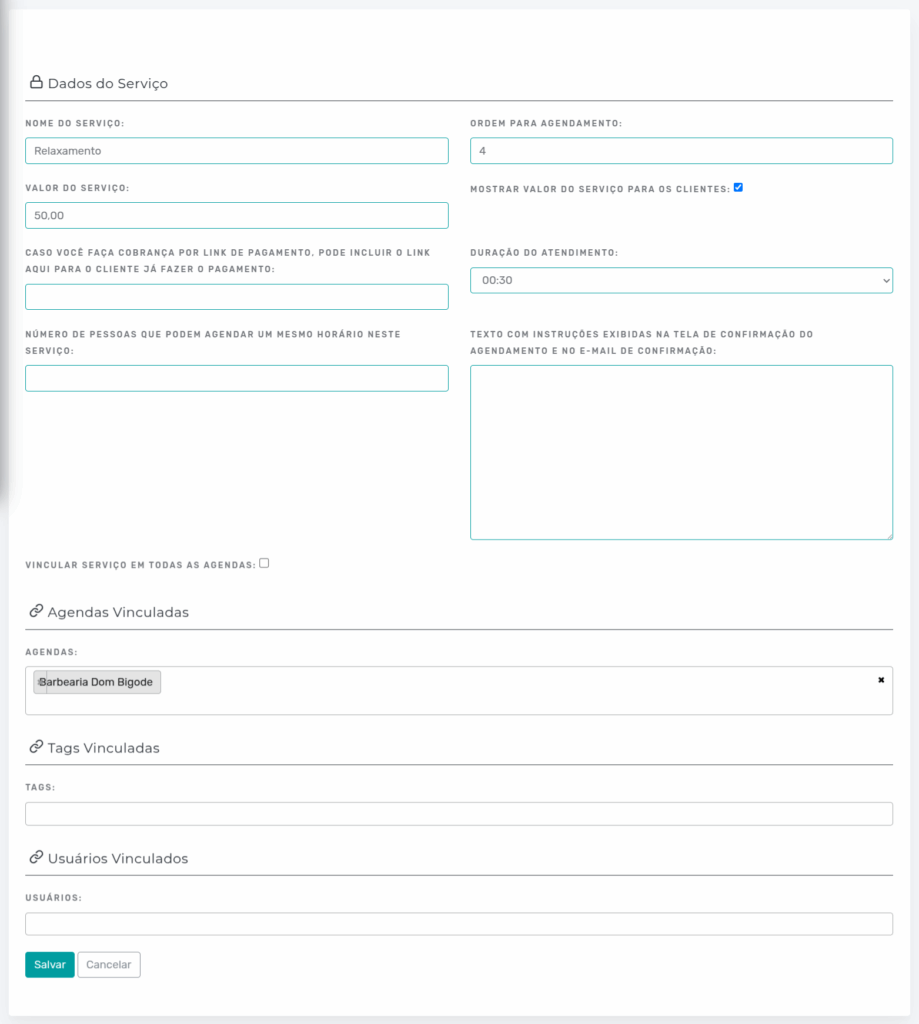
You can configure the service according to your needs, then click Save.
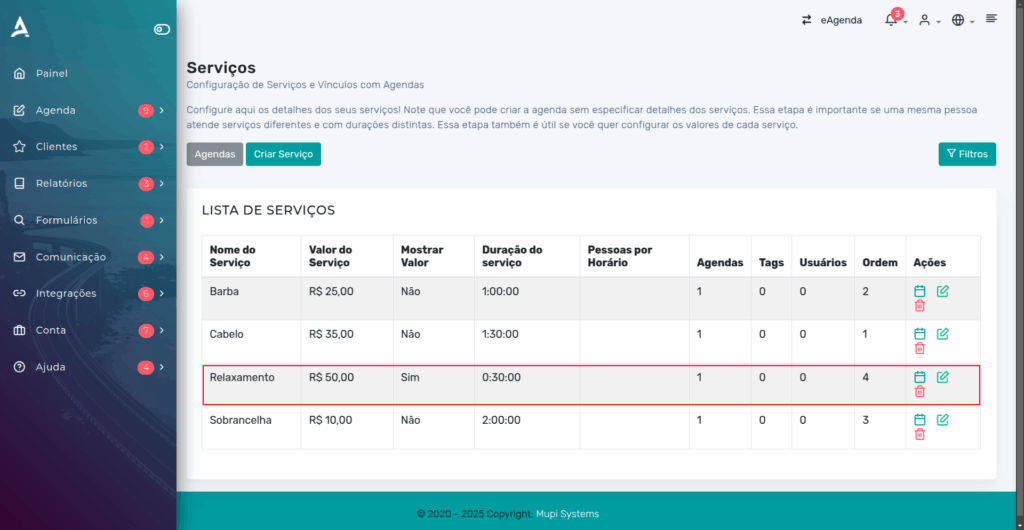
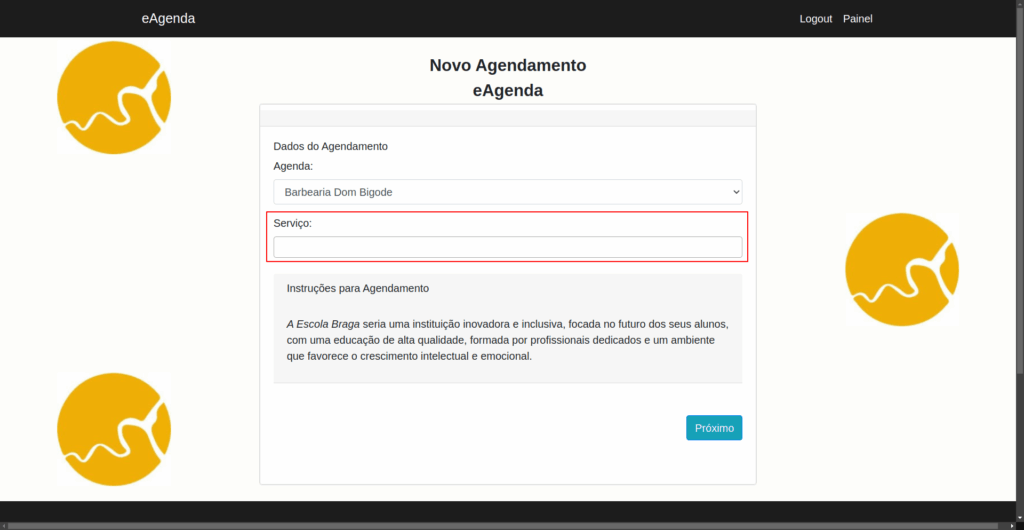
Done! Now, whenever a customer makes an appointment, they can select their desired service in a practical and personalized way.
Conclusion
In summary, in this tutorial you learned how to configure custom services on the eAgenda platform. This feature allows you to register different types of services within the same calendar, with variations in time, price, responsible professional, and even online payment links. This makes the scheduling process more flexible and transparent for the customer, who can choose exactly the service they want. The step-by-step guide includes accessing the calendar settings, creating or editing services, and defining details such as duration, price, and service capacity. Management becomes more efficient and the customer experience much more practical and professional.
Mupi Systems offers various technology solutions for all types of businesses. Explore our platforms that bring innovation to the market.
Contact Us or Learn More
We are available to help! Access our official channels:
WhatsApp: [Click here to send us a message] eAgenda Platform: [Explore eAgenda] Our Company: [Mupi Systems – Innovative Solutions] Email: [contato@mupisystems.com.br] Tutorials and Documentation: [Access our guides and tutorials]