My Time Slots Are Unavailable, How to Fix It?
In this tutorial, learn about common issues with time slot availability on eAgenda and their possible solutions. Here, we cover the main difficulties encountered when configuring schedules and appointments, along with effective strategies to ensure smooth and uninterrupted operation.
I – First Steps
- When accessing the booking link, dates are displayed but time slots do not appear. To resolve this, click Update on your schedule. For a detailed guide, see Step V.
- If the error persists after checking the previous step, verify the duration of your services and the configured appointment duration. For a detailed guide, see Step IV.
- If the issue persists after completing the previous step, check the minimum and maximum advance booking settings. For a detailed guide, see Step II.
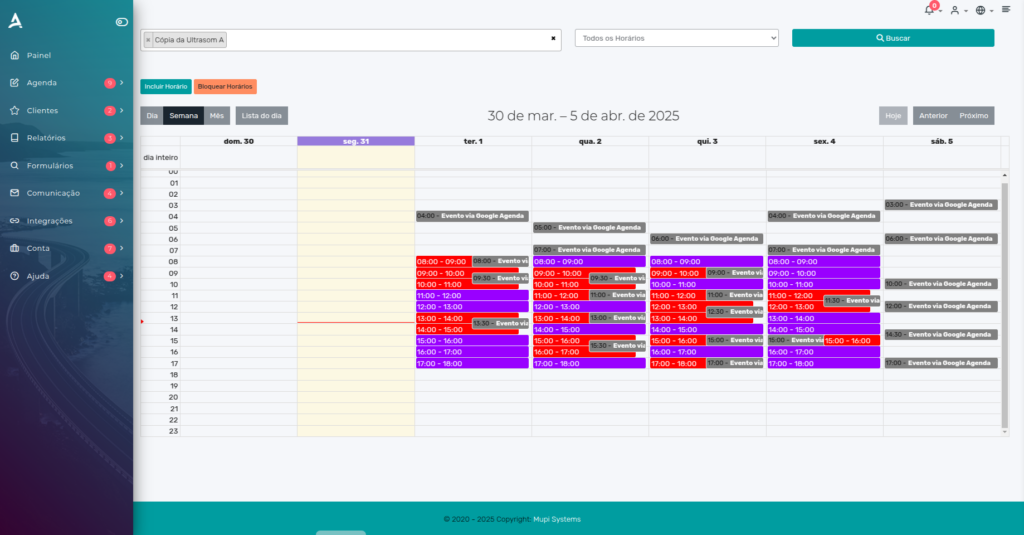
- After verifying all previous steps and the problem still persists, go to the View My Schedule tab. If the time slots appear blocked in gray with the message Event via Google Calendar, you will need to remove the events from the Google synchronization. For a detailed guide, see Step III.
II – Incorrect Maximum and Minimum Advance Booking Configuration
Minimum Advance Booking
Minimum advance booking is a parameter configured in scheduling systems that defines the minimum time interval required between the moment a client attempts to book a service and the actual appointment time. In other words, it establishes “how far in advance” a client must make a reservation for the booking to be considered valid.
Maximum Advance Booking
While the minimum advance booking defines the minimum interval required between the booking moment and the appointment, the maximum advance booking establishes the maximum interval allowed for a client to book a service.
In other words, the maximum advance booking limits “how far in advance” a client can make a booking. It is used to prevent clients from scheduling appointments too far into the future, which can make planning difficult or create uncertainties in the calendar.
Example to understand maximum advance booking:
Suppose you manage a scheduling system for medical appointments and define the following rules:
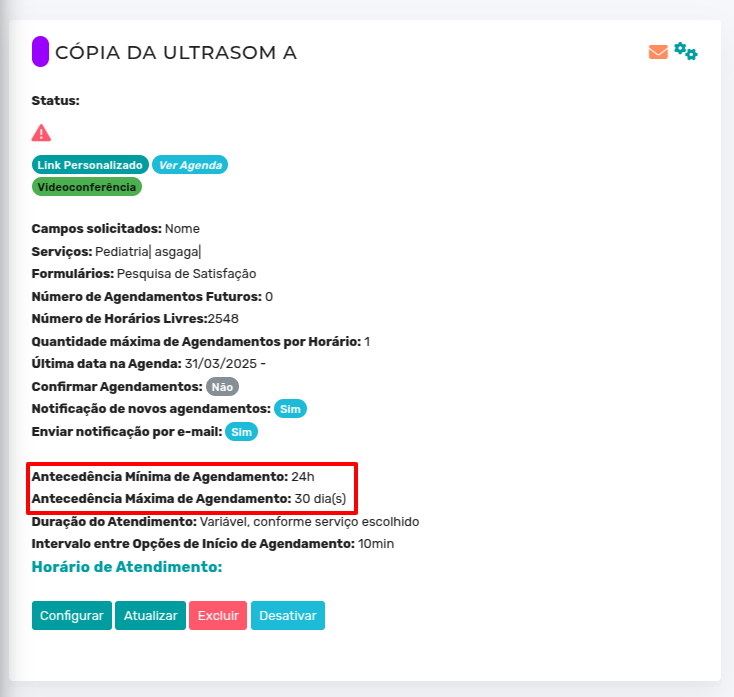
- Minimum advance booking: 24 hours.
- Maximum advance booking: 30 days.
This means:
- A client can only book an appointment at least 24 hours before the desired time (minimum advance booking rule).
- The client can only book an appointment at most 30 days before the desired time (maximum advance booking rule).
Therefore:
- If today is March 31, the client can book appointments for any day between April 1 (due to minimum advance booking) and April 29 (due to maximum advance booking).
- Appointments for April 30 or later dates will not be available, as they exceed the 30-day limit.
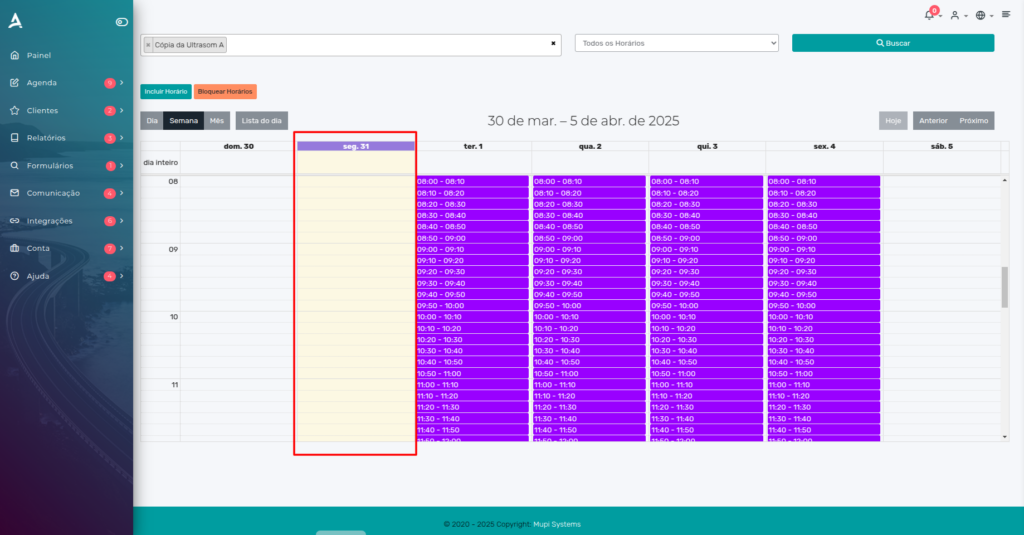
Note that with the minimum advance booking set to 24 hours, March 31 will not be available for booking.
III – Google Calendar Time Slot Blocks
Schedule blocking by Google is a common issue that occurs after integrating with Google Calendar and subsequently synchronizing with Google’s calendar. In this process, events already existing in Google Calendar are replicated in your eAgenda schedule, resulting in available time slots being blocked.
Solution
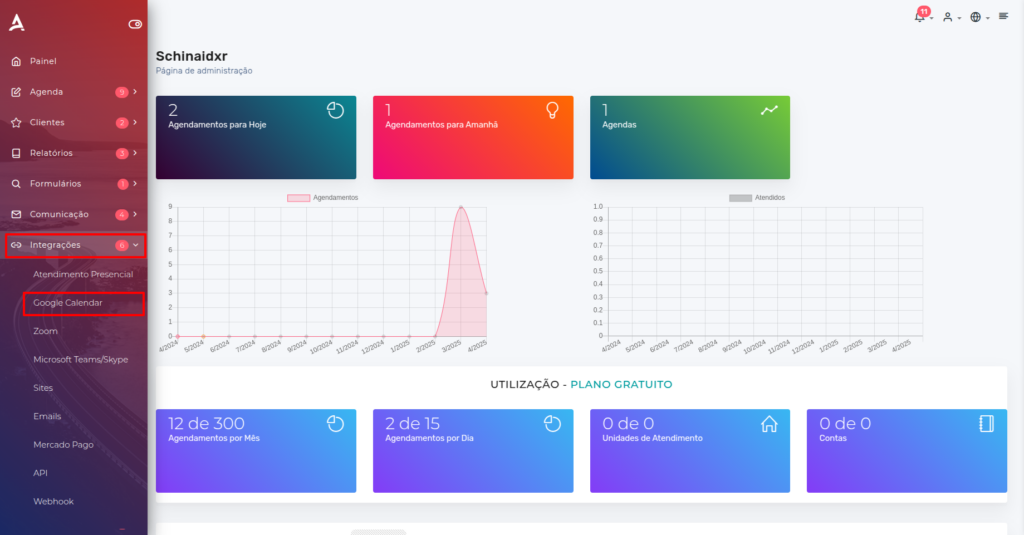
Access the side menu and click on Integrations > Google Calendar.
Then, click the Import Appointments button.
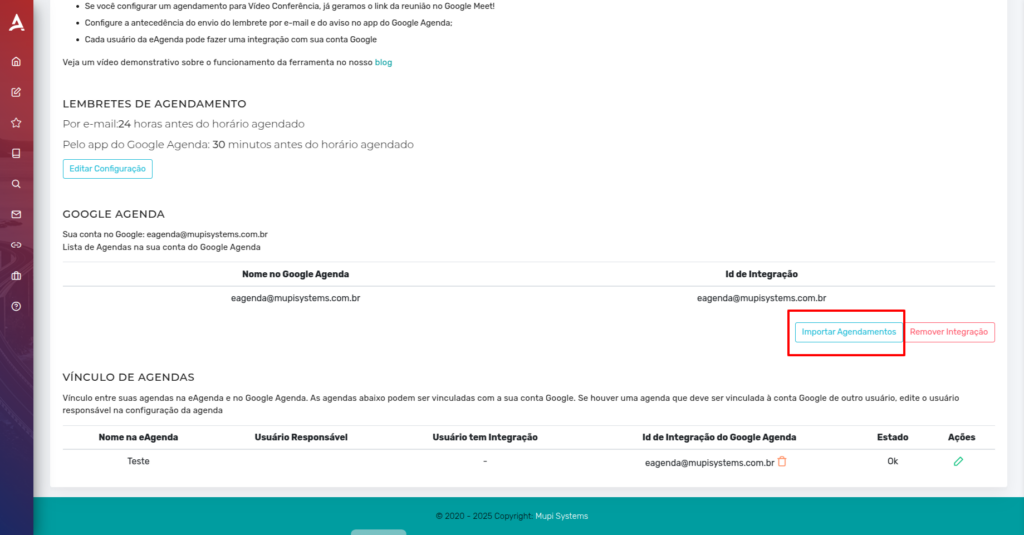
You will be redirected to the Calendar Synchronization tab, where you can view Google events. To free up blocked time slots, simply click the Delete (Trash) icon next to the event you want to remove.
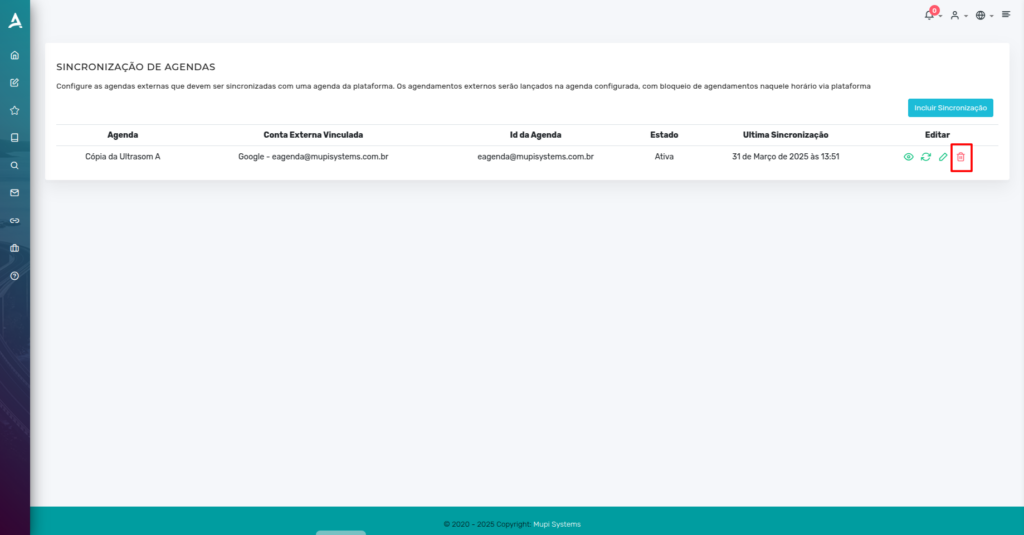
Once done, your time slots on eAgenda will be available again for bookings.
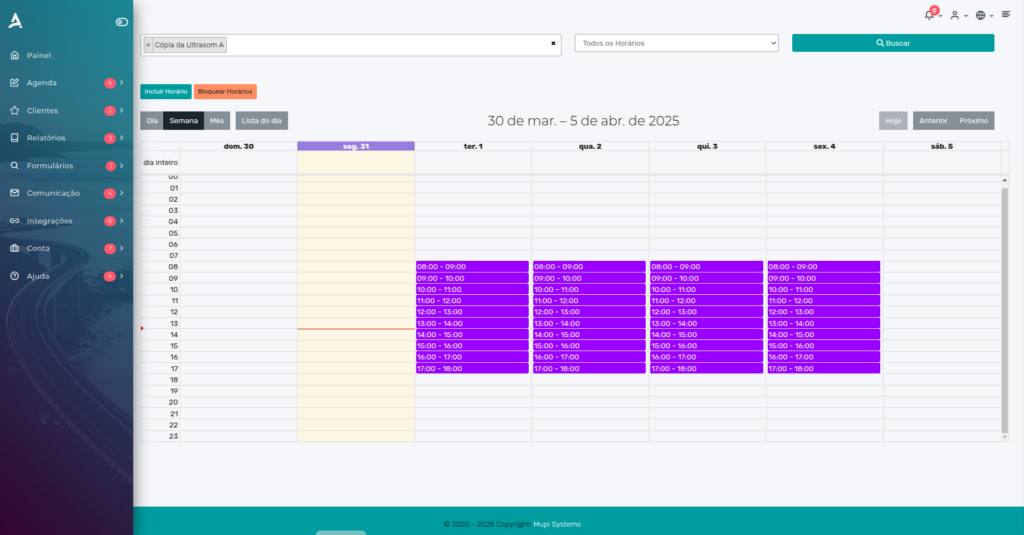
IV – Appointment/Service Duration Longer Than the Service Period
Configuring the appointment/service duration to be longer than the available time interval for service is a common error. For example: if service hours are set from 8:00 AM to 10:30 AM, but the service is configured with a duration of 3 hours, an error will occur, making it impossible to generate time slots correctly.

Note that the service duration is longer than the available service time, resulting in a system error.

V – Changes to Service Hours
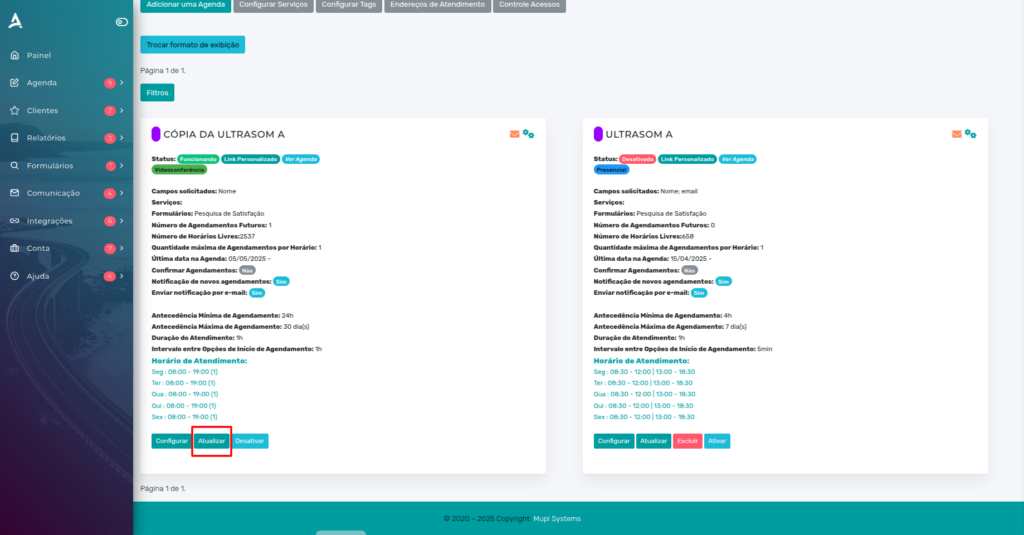
A common behavior that can be confused with an error is the rendering of new time slots. When making changes to schedule hours, the system needs to process the updates to make the new time slots available. During this interval, when accessing the booking link, the client may see available dates, but the time slots will not yet be loaded. This scenario is often misinterpreted as an error.
The solution is simple: access the Schedule > Configuration tab in the side menu. On the desired schedule, click Update.
Conclusion
In this tutorial, you learned about the most common errors. We hope this has helped resolve the issue. If the error persists, please contact support. Take the opportunity to visit our Blog for other questions or access our YouTube channel.
Mupi Systems offers various technological solutions for all types of businesses. Discover our platforms that bring innovation to the market.